
Goldfields Libraries Catalogue App
Log on to the Spydus Library app on your smartphone or tablet for fast, free access to the Goldfields Libraries catalogue and your account.
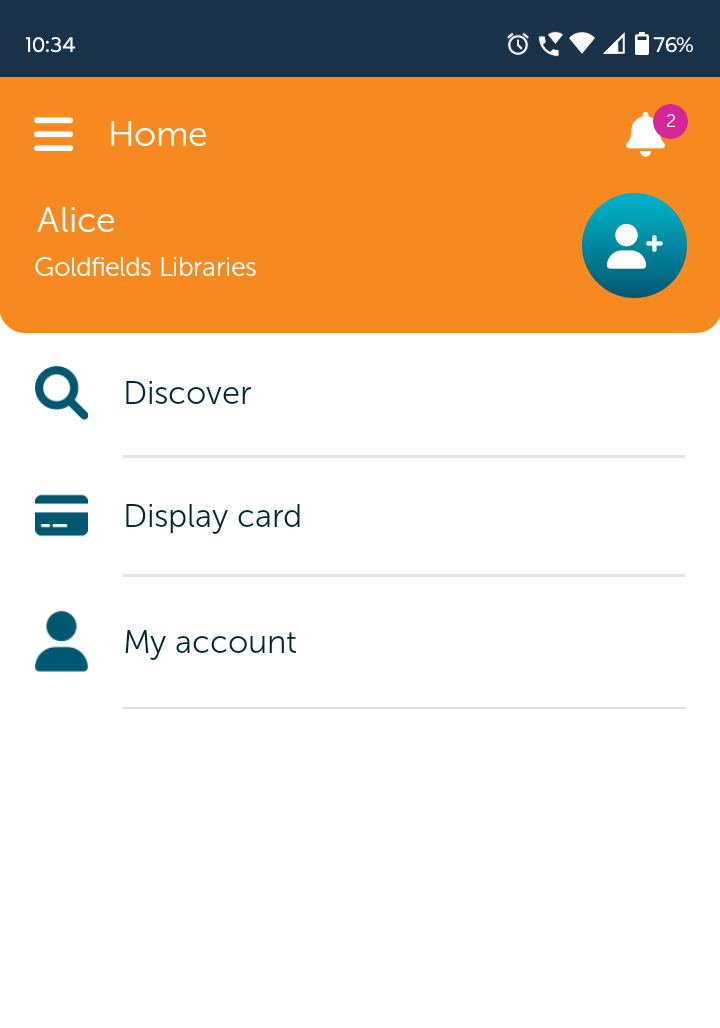
- Available for Apple or Android.
- Log in once and stay logged in.
- Access your library card digitally.
- Reserve items from the catalogue.
- Scan the barcode of an item outside the library to find out if it is available to borrow. If it is, reserve it instantly.
- Renew your items by selecting them and clicking Renew.
- Access your library account to view current loans, reservations ready to collect, overdue items, personal details and more.

Getting Started
Problems with the Old App, Spydus Mobile
Unfortunately the old Spydus Mobile app may no longer work properly.

The best solution is to change to the new Spydus Library app, as shown above. Just search for “Spydus Library” in the Apple App store or the Google Play store.
Alternatively, access your account in our online catalogue or contact us.
Not sure if you are using the old app or the new app? The old Spydus Mobile app has a darker icon.
PIN Troubleshooting for Spydus Library
What PIN do I use on the first screen?
And is it the same as my library card PIN?
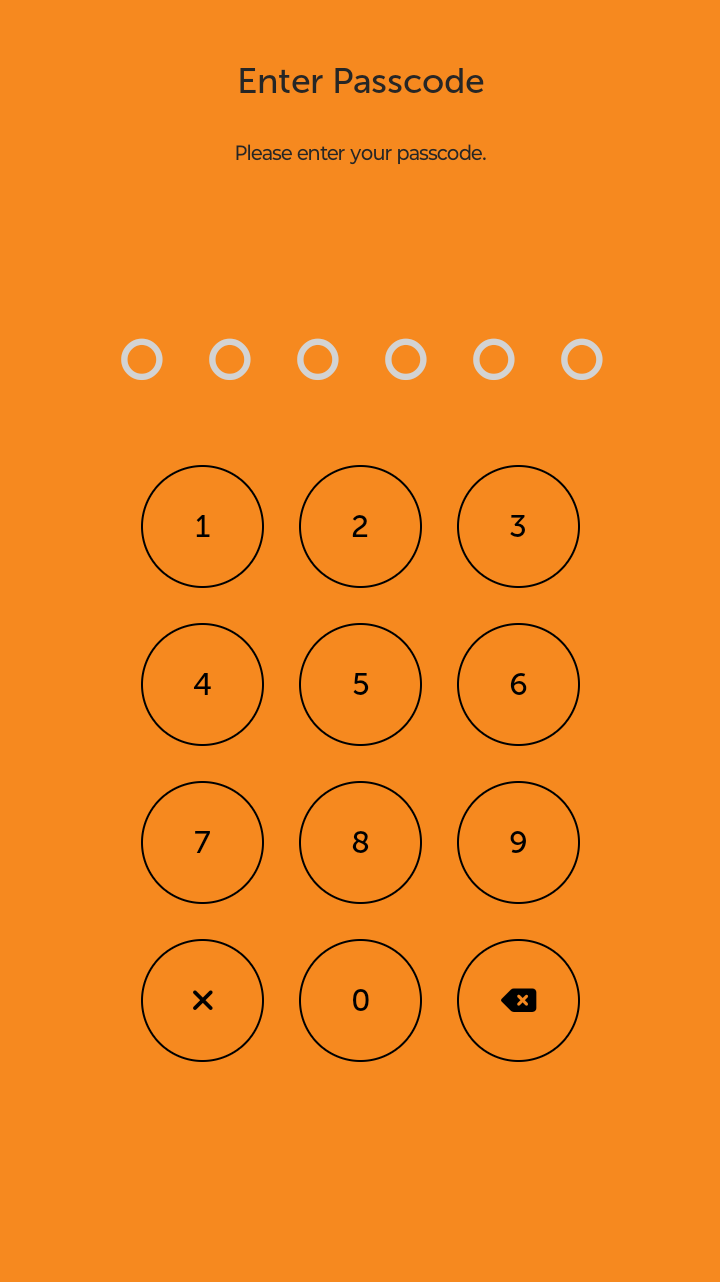
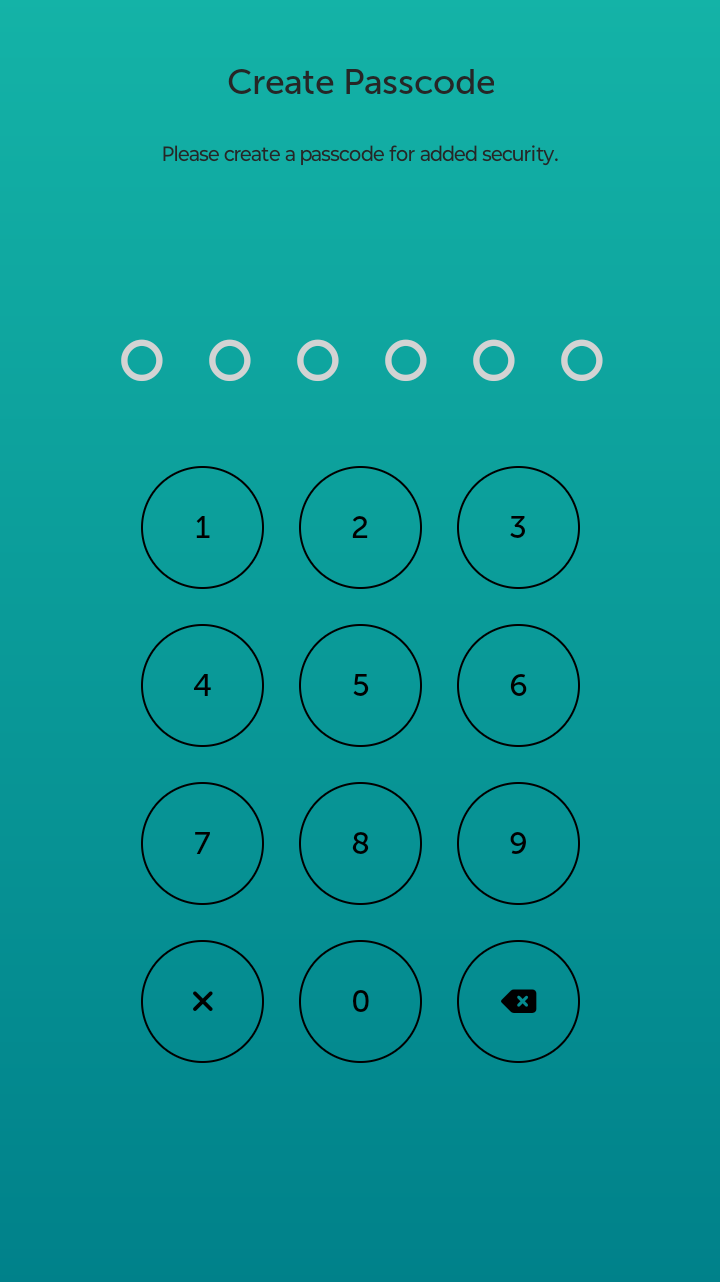
No. This PIN is a different number you only use for the app. It is different to the PIN on your library card, and different again to the PIN for your phone.
The Spydus Library app will ask you to create a new PIN the first time you use it (or the first time after it updates).
If your phone uses a fingerprint or facial recognition lock, you may also be prompted unlock the app that way.
Can I turn the Spydus Library app PIN off?
Yes. In the app, press the menu button in top left corner and select Settings. Then on the Setting screen, turn off Security.
This setting only affects the app. Your library card will still have its own PIN or password.
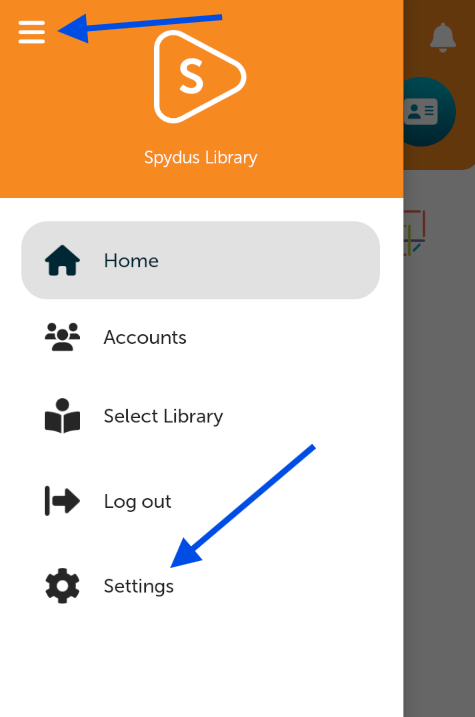
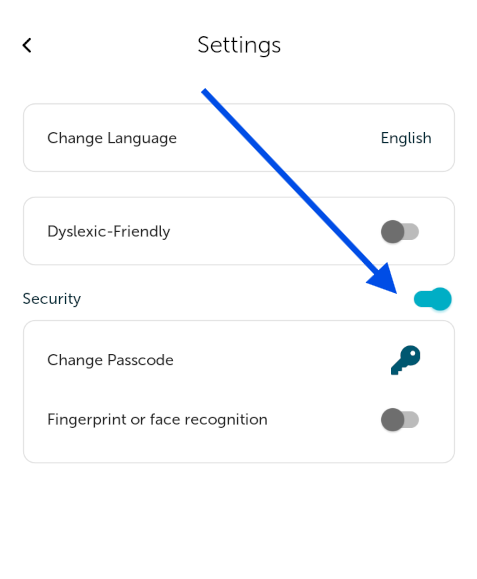
If the app is prompting you to set up a PIN in the first place, unfortunately there is no way to avoid this. You will need to create the PIN first, then go into the settings menu and turn it off as described above.